Prerequisite: Update Your ESS Contact Information
Follow the steps below to make sure your email address and phone number are set up correctly in ESS needed for Pension Portal Login. Any changes take 48 business hours to take effect.
1. Go to ESS
2. Log in to ESS
Enter your:
- User ID: Your Employee Number (ex. 0123456)
- Password: Your ESS password
If you forgot your password, click “Forgot your password” under the Password box and follow the instructions.
IMPORTANT: The NYC Fire Pension Fund cannot reset your ESS password.
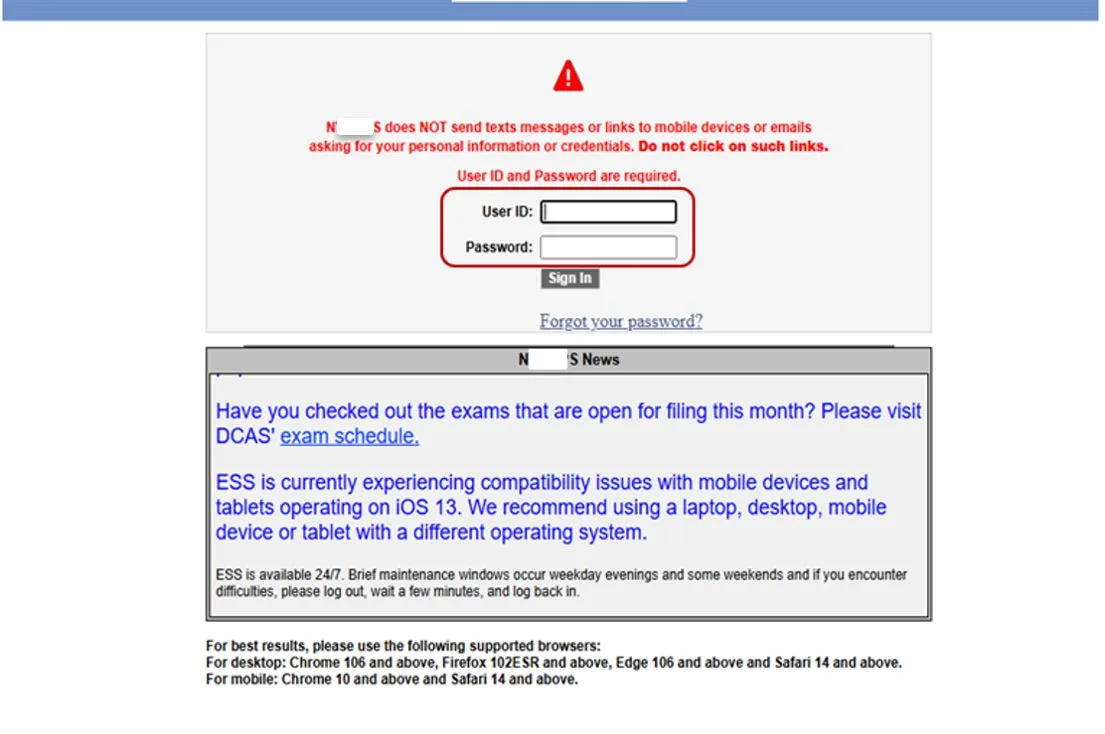
3. Enter the verification code
ESS will send a verification code to the email address saved in your ESS profile.
Enter the code when prompted.
IMPORTANT: Fire Pension Fund cannot change the email address in your ESS profile. If you cannot access the email address on your profile, please use the contact information provided below or contact your HR department for assistance.
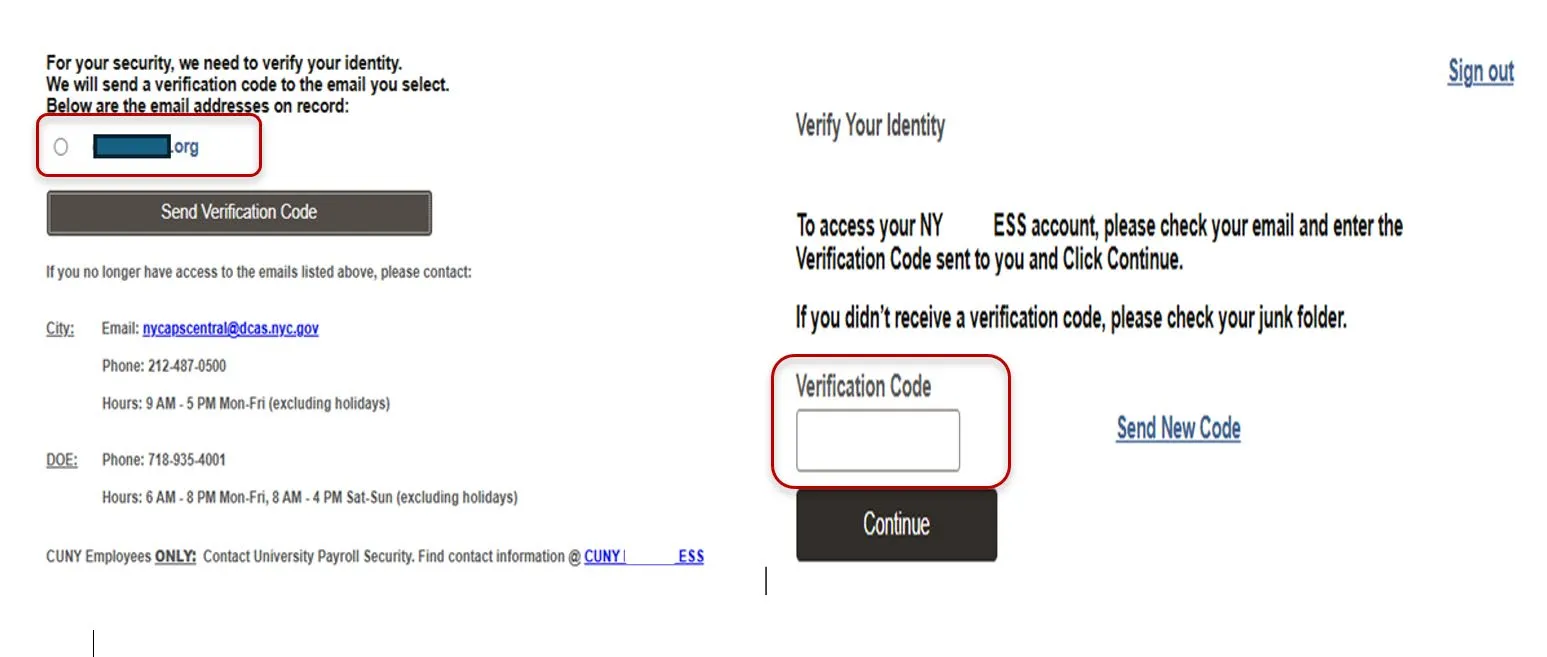
4. Open Personal Details
After you log in, you will see your Employee Self Service screen.
Select Personal Details.
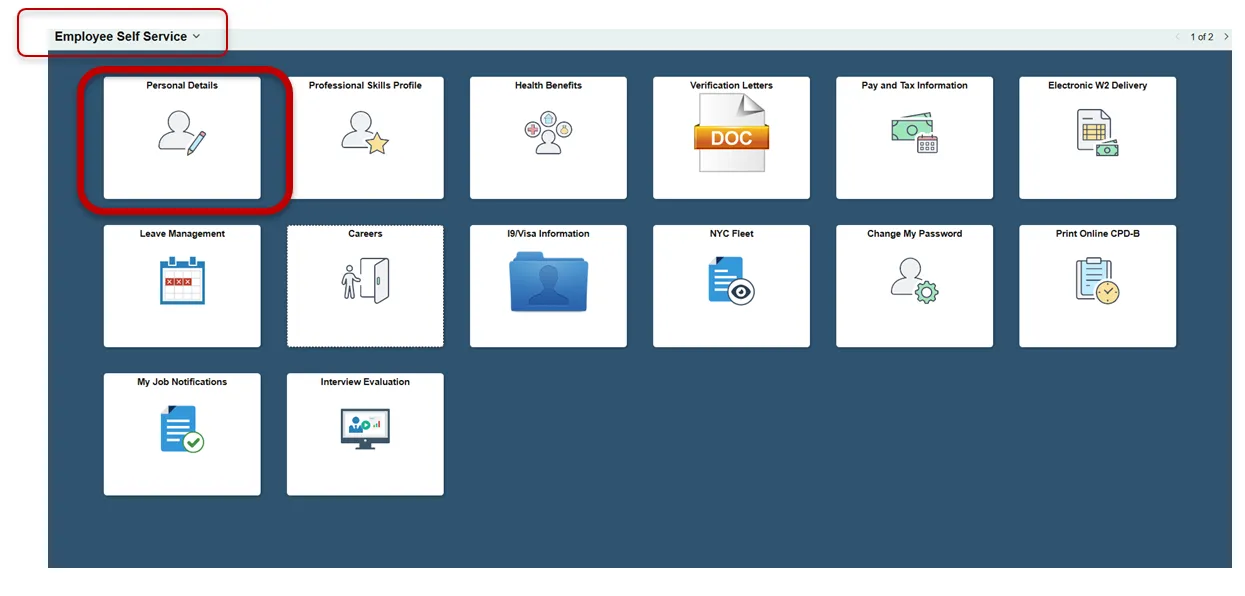
5. Open Contact Details
From the menu on the left, select Contact Details.
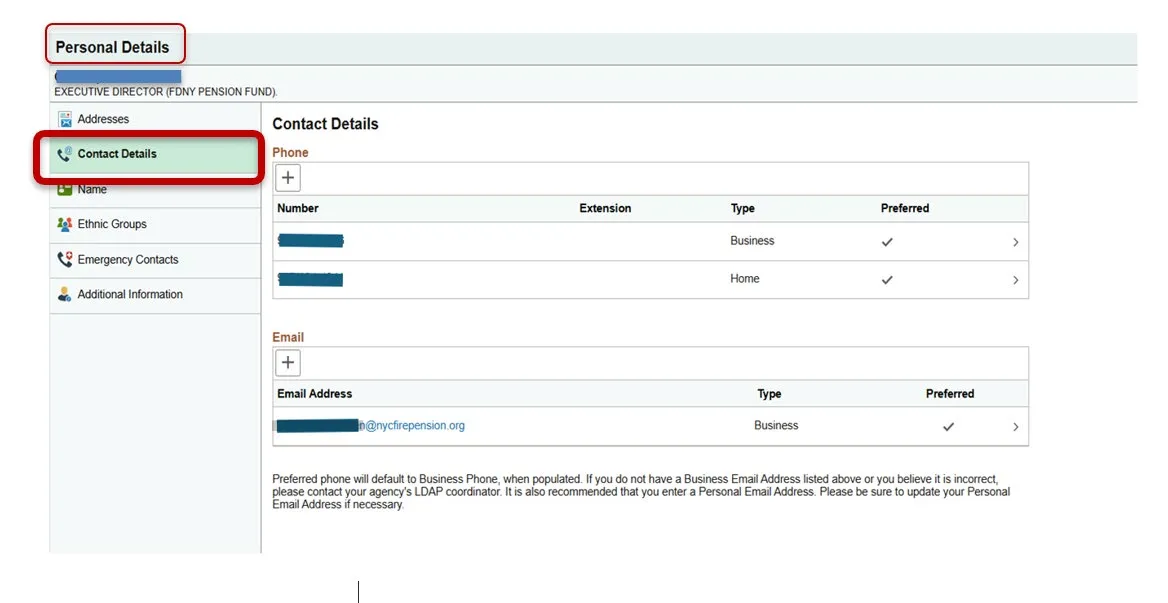
6. Check your email address
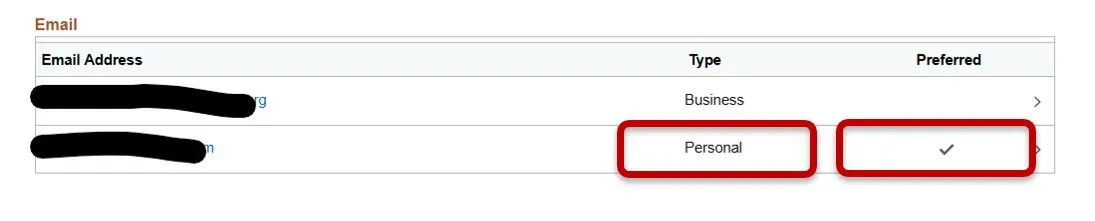
Make sure your PERSONAL email address listed in ESS is the same email address you will use to log in to the Pension Portal.
If your personal email addresses do not match, you will need to update your ESS by adding the type ‘Personal’ or ask your HR Representative on how to update your contact details.
7. Check your phone number
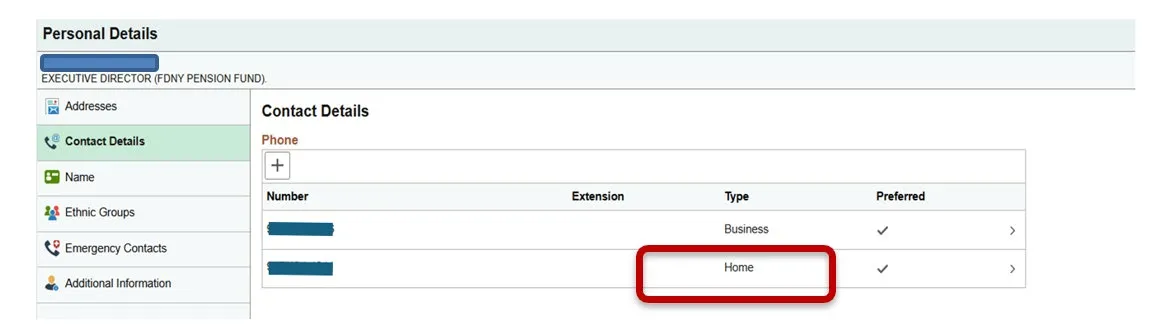
Make sure the phone number you use for the Pension Portal is listed with the “HOME” phone type.
YOU DO NOT NEED TO USE A LANDLINE. A cell phone can be listed as your Home phone. Any phone number you intend to use for Pension Portal purposes should be listed as Home.
For example, you can list the same cell phone number twice:
- Home: 555-555-5555
- Personal Cell: 555-555-5555
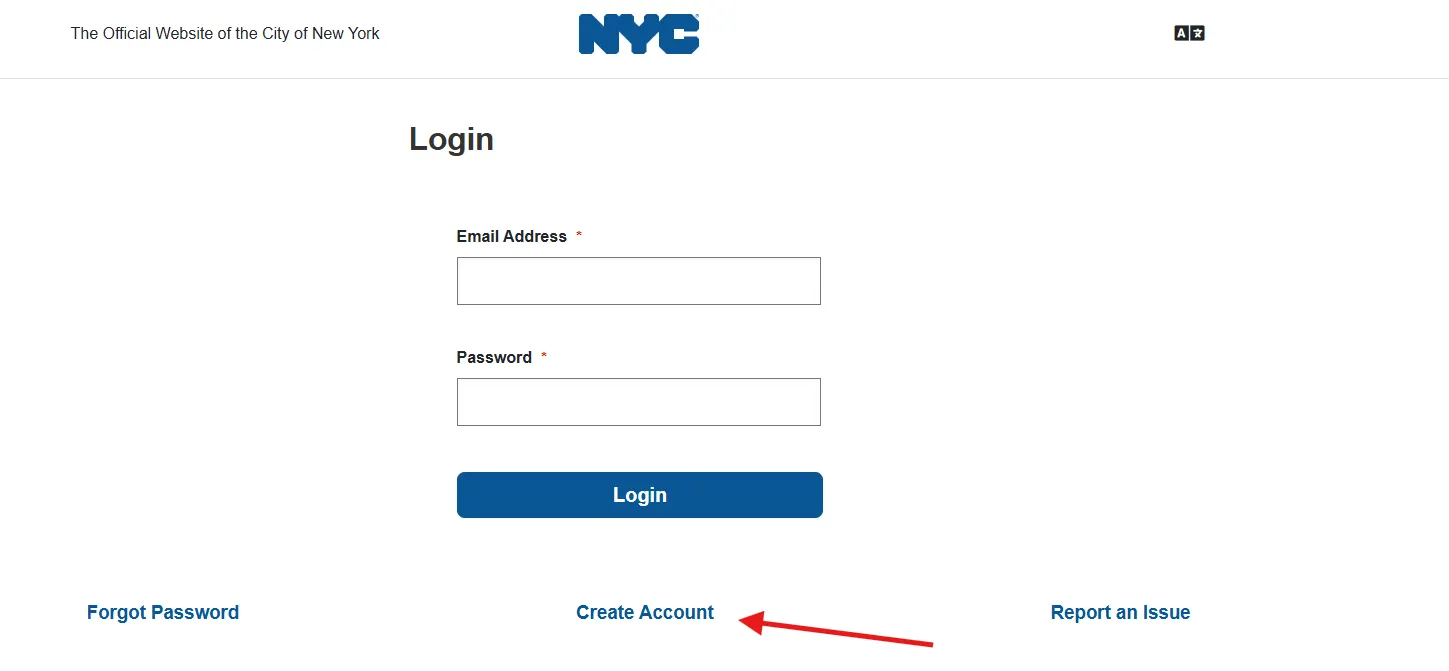
8. Register for NYC ID using ESS information.
To begin click Create Account.
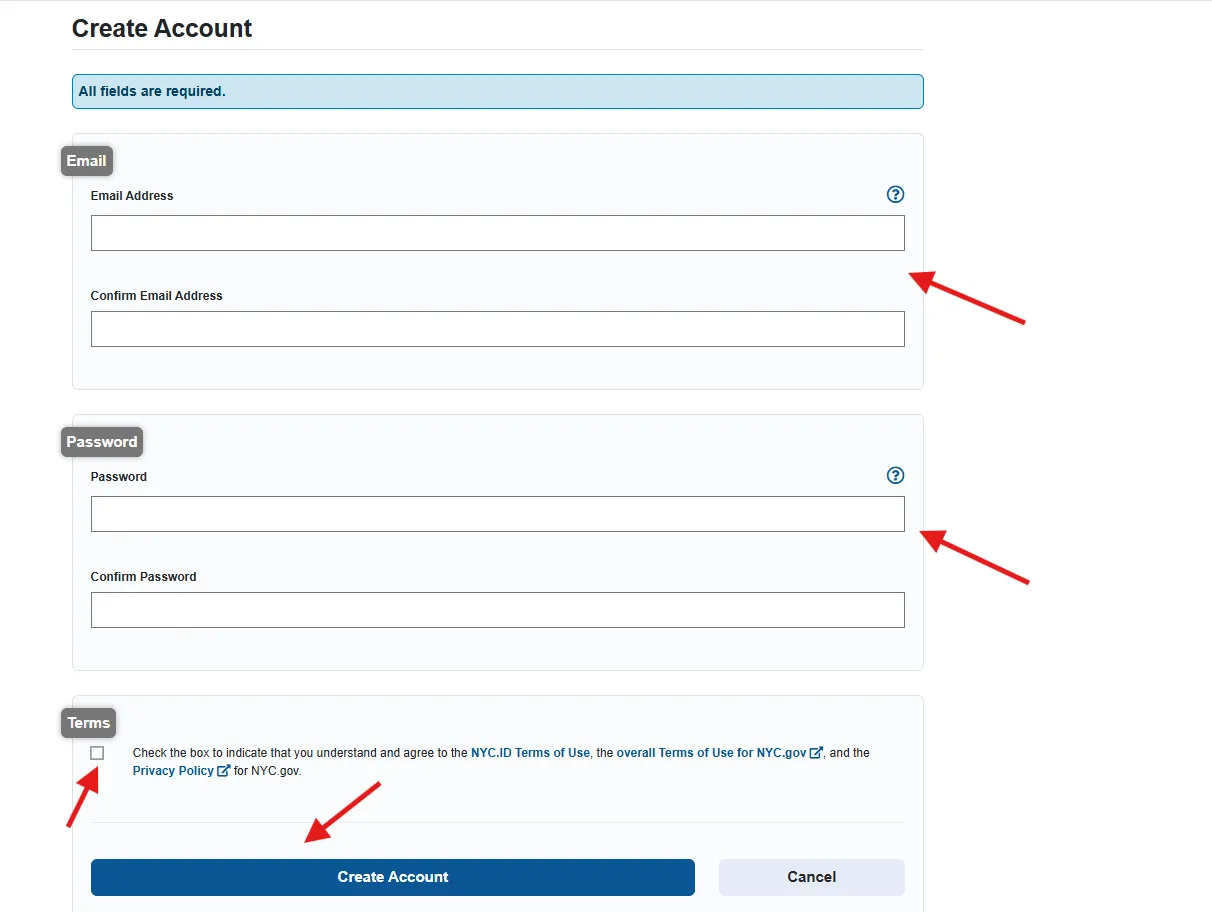
9. Set up NYC ID account.
Enter in your ESS email and create a password for your account. Once entered, accept the terms and select Create Account.
10. Verify your account
You will receive an email to the ESS email you entered for the account creation. Open the email and verify your email address.
11. Wait 48 business hours before logging into the pension portal
After 48 business hours have passed you will be able to log into the pension portal using your ESS email and password.
Important Notes
- Fire Pension Fund cannot reset your ESS password.
- Fire Pension Fund cannot change the email address in your ESS profile.
- Your Pension Portal email should match the email address in ESS.
- Your Pension Portal phone number should be listed as Home in ESS.
- Your cell phone can be listed as your Home phone. You do not need a landline.